

How to listen to your courses
1. Log in
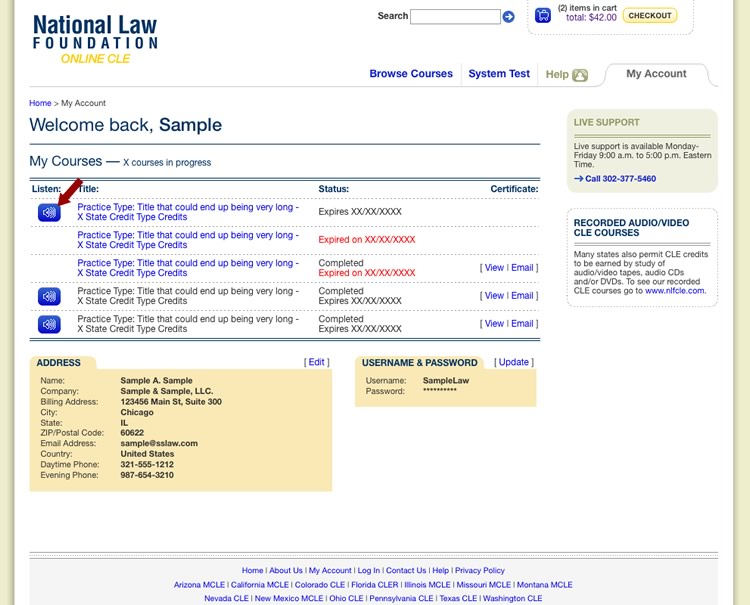
Enter your Username and Password on any page.2. Select your course (Figure 1.1)
All of your purchased courses are on your account page. Your courses will be available for one year from the date of purchase. Courses for some states may expire in less than one year and will display a "CLE-Approved until" date also. To start a course, click on its blue Listen button.3. Listen to your course
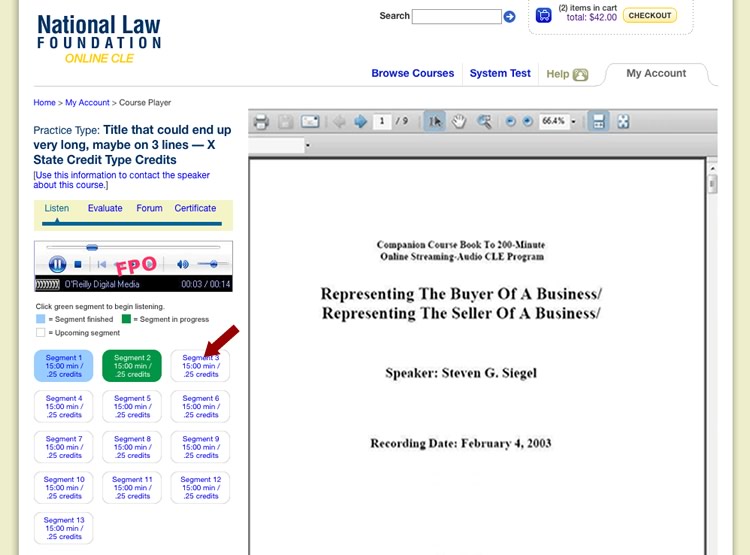
. . . on a Laptop or Desktop (Figure 1.2)
Courses are divided into 15-minute segments though the last segment can last longer. On the course player page, the pdf viewer at the right displays the course materials. To the left, the segment indicators display your current segment in green and completed segments are blue. Audio play will begin automatically.During some state's courses (including AZ, DE, IL, IN, LA, NC, NJ, OH, PA, TN, UT and VA) a CONFIRM PARTICIPATION pop-up window will appear at random intervals. When this box appears, the speaker will continue but you must click the OK button within 2 minutes. If you fail to respond during these 2 minutes, the program must be restarted from the My Account page. The course will resume at the beginning of the interrupted segment.
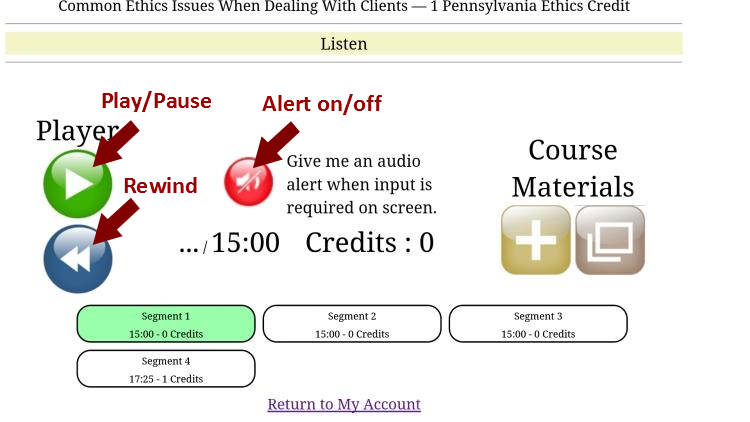
. . . on a Mobile Device (Figure 1.2b)
Play will begin only after the green play button has been clicked. The mobile player includes additional features. For those states where a CONFIRM PARTICIPATION box appears, you can click the red alert button to receive a simultaneous audio alert. Each click of the blue rewind button will take you back 30 seconds. A clock diplays your progress in the segment and the credit value of completed segments is shown. Course materials may be displayed below the segment indicators by clicking the square button with the plus symbol and the same materials can be opened in another window by clicking the square button with 2 windows
  .
.
When using an iPad or iPhone and relying on the audio tone to alert when input to CONFIRM PARTICIPATION (clicking the OK button) is required, set the OS to auto-lock after 15 minutes. The audio will not sound when the device is locked. After clicking on the CONFIRM PARTICIPATION button on an Andriod device, it may be necessary to click the orange PAUSE button and then click it again after it displays the green PLAY icon.
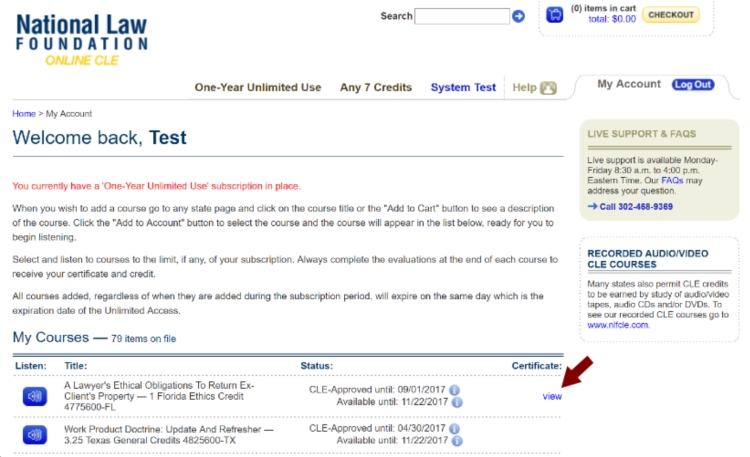
4. Evaluate and View the Certificate (Figure 1.3)
An evaluation link appears automatically at the end of your course. Click the button and complete the evaluation to obtain your certificate. Your certificate will be displayed when you click the View link on the My Account page.How to add courses with a subscription
1. Log In
You must be logged in with your Username and Password (remember, the password is case sensitive!) for the system to recognize that you have purchased a subscription. Logging in will take you to your account page where your subscription will be displayed: "Welcome back, ..." "You currently have a ... subscription in place."2. Make sure your cart is empty
Courses that you may have selected before logging in go into the shopping cart. There is no way for items in the cart to be placed in your account.3. Go to your state page
Scroll down to the bottom of your account page (the page that begins with "Welcome back, . . .) and find and click the link to your state page.4. Select a course
Click the title or the ADD TO ACCOUNT button to display a full description of the course. On this page you will see a the price crossed out and another ADD TO ACCOUNT button which you will click after entering a bar ID number if requested. The course will be placed in the list on your account page, ready for listening.How to purchase a course
1. Select your state
On the state page, you'll find a list of available courses. (If you have an account, you may want to log in first.)2. Select your course (Figure 2.1)
Once you've found your course, press ADD TO CART. You can purchase several courses at once.3. Checkout (Figure 2.2)
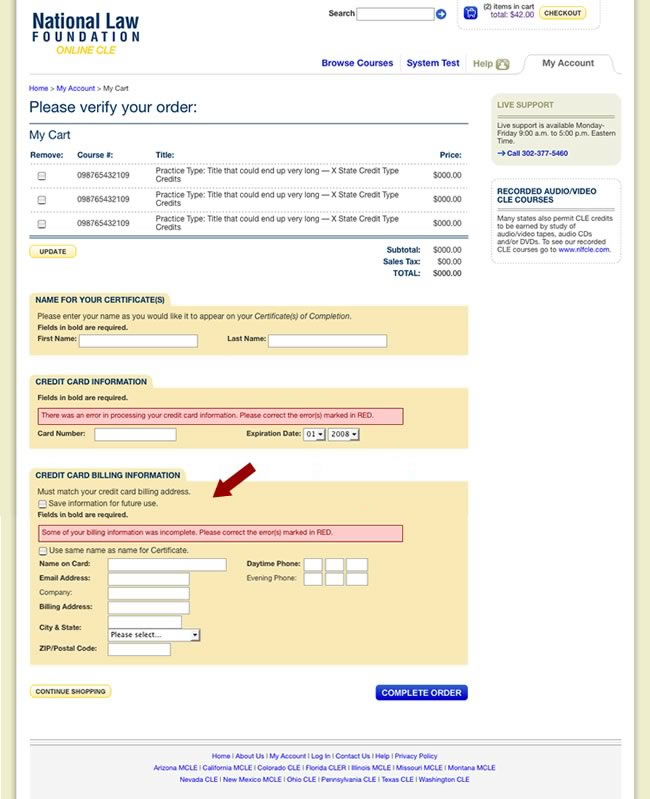
Once you are finished shopping, choose the PROCEED TO CHECKOUT button at the lower right in your cart. (You can always display the cart contents by clicking CHECKOUT in the upper right of any page.)4. Enter billing information (Figure 2.3)
This is the last step. If you are already signed in, your address will appear. (You can edit it if necessary.) If you are not signed in, you will need to enter a Username and Password as well as your billing address and credit card information. Press Complete Order and you're done.Figure 1.1 [ View whole page ]
Figure 1.2 [ View whole page ]
Figure 1.2b [ View whole page ]
Figure 1.3 [ View whole page ]
Figure 2.1 [ Click to enlarge ]
Figure 2.2 [ Click to enlarge ]
Figure 2.3 [ Click to enlarge ]